
When someone searches for a local service on Google, the first thing they see isn't a list of websites — it's a map with three business listings. This is called the Local Pack or Map Pack, and it gets more clicks than any other part of the search results page.
Getting into those top three spots is driven almost entirely by your Google Business Profile (GBP) — a free tool that most business owners set up once and forget about. This guide walks you through every optimisation, in order of impact.
What Is Google Business Profile?
Google Business Profile (formerly Google My Business) is a free listing that controls how your business appears in Google Search and Google Maps. When someone searches "electrician near me" or "best Italian restaurant in [city]," your GBP is what determines whether you appear — and how high.
It's completely free to create and manage. The only cost is time.
Step 1: Claim and Verify Your Profile
Go to business.google.com and search for your business. If it already exists (Google auto-generates listings from public data), click "Claim this business." If not, click "Add your business."
Verification is required before your profile becomes active. Options include:
- Postcard: Google mails a postcard with a code to your business address (5–14 days)
- Phone or email: Available for some businesses, faster
- Video verification: Google may ask you to film your storefront or workspace
- Instant verification: Available if you've already verified your website with Google Search Console
Don't skip verification — an unverified profile won't rank.
Step 2: Choose the Right Business Category
Your primary category is one of the most powerful ranking signals in GBP. Choose the most specific category that describes what you do:
- "Plumber" is better than "Contractor"
- "Italian Restaurant" is better than "Restaurant"
- "Family Law Attorney" is better than "Lawyer"
You can add up to 9 secondary categories. Use them to capture related searches — a salon might add "Hair Colourist," "Nail Salon," and "Beauty Salon" alongside their primary "Hair Salon" category.
To find the best categories for your business, search for your top competitors in Google Maps and look at what categories they've selected.
Step 3: Write a Keyword-Rich Business Description
Google gives you 750 characters for your business description. Use them. Write naturally — don't just stuff keywords — but make sure you include:
- Your main service(s)
- Your city and service area
- What makes you different (speed, experience, speciality)
- A soft call to action
Example for a plumber: "Joe's Plumbing has provided fast, reliable plumbing services across Austin, TX since 2008. We specialise in emergency callouts, boiler installation, and bathroom fitting. Available 7 days a week with same-day appointments. Licensed, insured, and trusted by over 400 Austin homeowners. Call us for a free quote."
Your description doesn't directly rank you — but it influences whether someone clicks your listing once they see it. Make every word earn its place.
Step 4: Add Every Service You Offer
GBP has a dedicated "Services" section where you can list every individual service with a name, description, and optional price. This is often ignored but extremely valuable — Google uses your service list to match your profile to specific searches.
A plumber who lists "emergency drain unblocking," "boiler servicing," "bathroom installation," and "leak detection" separately will appear for all four searches. One who just lists "plumbing" as a service will only match generic queries.
Be specific. Write a 1–2 sentence description for each service. Include the price if it's fixed, or a range if it varies.

Step 5: Upload High-Quality Photos (and Keep Adding Them)
Profiles with photos receive 42% more requests for directions and 35% more website clicks than those without, according to Google's own data.
Upload at least these categories of photos:
- Logo — displays next to your business name in Maps
- Cover photo — the main image on your listing
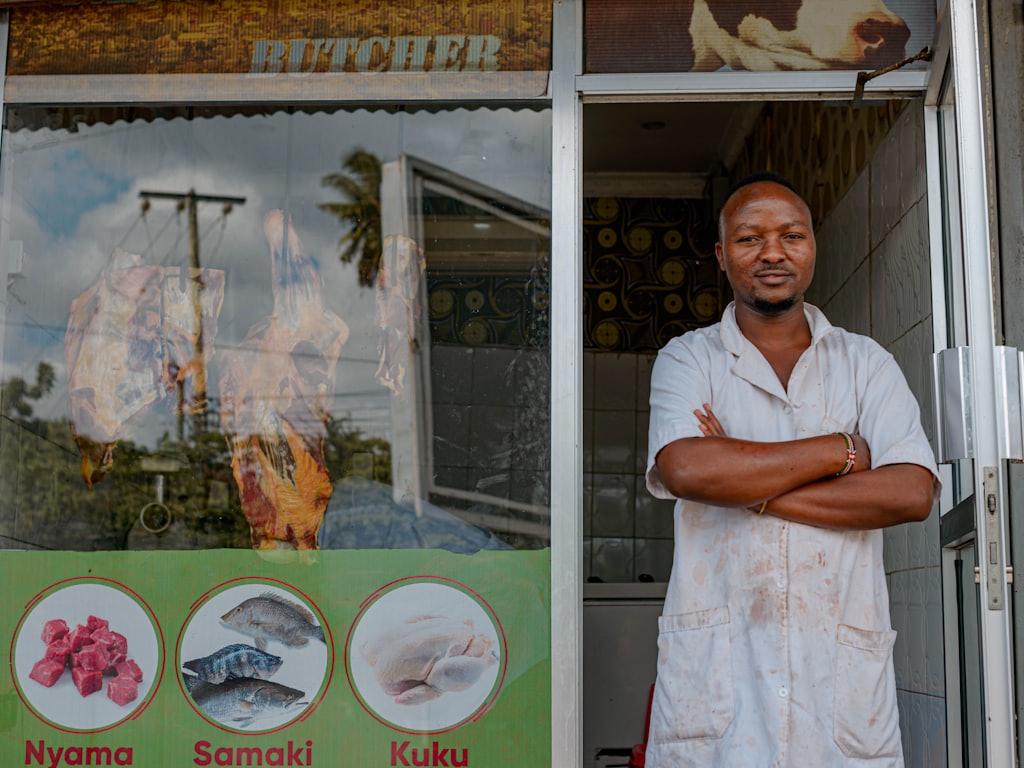
- Exterior — your shopfront or office so customers can recognise it
- Interior — inside your premises
- Team photos — puts a human face on your business
- Work/product photos — before/after, finished projects, dishes, etc.
Add 2–3 new photos every month. Regular additions signal an active business to Google's algorithm.
Use real photos, not stock images. Google can detect stock images and they perform poorly with users.
Step 6: Generate and Respond to Reviews Systematically
Reviews are the #1 ranking factor for the map pack. Here's a system that works without being pushy:
- Get your unique review link from GBP dashboard → "Get more reviews"
- After every completed job, send a follow-up text: "Hi [Name], thank you for choosing us! If you're happy with the work, we'd really appreciate a quick Google review — it takes 30 seconds and means a lot to us: [link]"
- Reply to every review within 48 hours — positive and negative. Thank reviewers by name, address complaints professionally.
- Aim for a minimum of 2 new reviews per month
Never buy reviews or incentivise them with discounts — Google's algorithm detects patterns and will suppress or remove your listing.
Step 7: Post Weekly Updates
GBP Posts are short updates (text + image + CTA button) that appear directly on your listing. Think of them like Instagram posts for your Google profile. Types of posts that work well:
- Offers: "10% off boiler servicing this month"
- Updates: "We're now open on Sundays"
- Events: "Free consultation day — Saturday 15th July"
- New services: "We now offer EV charger installation"
Posts expire after 7 days, so post at least weekly. Always include a photo and a "Book" or "Call Now" button.
Step 8: Answer Questions in the Q&A Section
Your GBP listing has a public Q&A section where anyone can ask — and anyone can answer. Left unmanaged, this becomes a liability. Managed proactively, it's a ranking opportunity.
Seed the Q&A yourself: log into your profile and ask the most common questions your customers have, then answer them. Examples: "Do you offer same-day appointments?" "What areas do you cover?" "Is parking available?" "Do you accept card payments?"
These Q&As are indexed by Google and can appear in search results.
Step 9: Keep Your Information 100% Accurate
Update your hours for holidays and special events. An incorrect "open" status when you're actually closed creates a terrible customer experience — and Google factors user signals (people showing up and finding you closed) into your ranking.
If anything changes — phone number, address, hours, website URL — update GBP within 24 hours.
How Long Until You See Results?
A fully optimised GBP with consistent reviews and posts typically sees map pack movement within 4–8 weeks. In low-competition areas or niches, it can be faster. In highly competitive markets (e.g., "dentist in central London"), expect 3–6 months of consistent effort.
What About Your Website?
GBP and your website work together — your profile ranking is boosted by having a linked website with matching NAP (name, address, phone), local keyword relevance, and fast load speed. If your website is missing or underperforming, even a perfect GBP has a ceiling on how high it can rank.
At LocalPageHQ, we set up and optimise your Google Business Profile as part of our Growth and Pro plans — alongside building a fast, SEO-ready website that amplifies your GBP ranking from day one.
